Need Help?
If you run into issues, reach out via the contact form on the About page.
Frequently Asked Questions
How do I create my first packlist from scratch and add items to it?
- Open Packlists List
 and tap the
  button. Fill the details, then save - you will add items later.
 - You’ll land on Packlist Detail. Tap button at the bottom and Quick add to create something new or Add from list to pull in items you already use. For premium users, there is also Add from public that allows you to quickly add any item prepared by us, the PackYourself team.
- For editing the packlist info again, tap on the
 in the top app bar.
How do I delete a packlist?
Two ways:
- Navigate to Packlist Detail by tapping on any packlist. Then, tap on the in the top app bar. You will find the trash icon in the app bar.
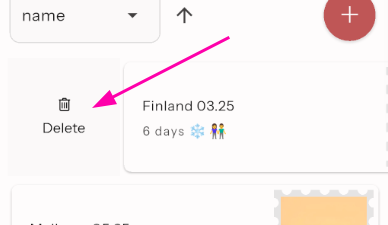
- Open Packlists List and swipe right on any of your packlists. You can find a delete icon there.
How do I manage item categories across my packlist or items library?
Two ways:
- From the Item Detail screen (tap on any of your items), tapping on the Category field will pop up a small window in which you can write whatever category name you wish, or select from the existing ones in given packlist/your items collection.
Category selection made within Item Detail screen only affect this particular item.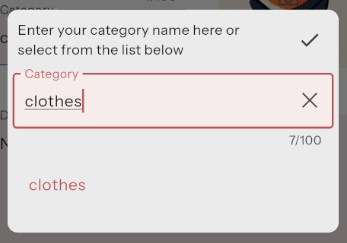 .
. - From the Packlists List or Items List
 screens, tapping on the pencil icon within the items categories tab
 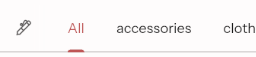 will pop up a window in which you can edit, delete or add new categories.
IMPORTANT: Actions made here affect multiple items. Deleting a category will delete all associated items!
Can I start without an account? What happens to my data if I’m anonymous?
- Yes. On first launch, we sign you in anonymously so you can start packing immediately. Note that the anonymous account is intended to familiarize our users with the application, and the features are limited.
- Your data lives in a temporary anonymous user that is not linked to anything.
- When you register later, we migrate your anonymous data to your real account so you keep your lists and items.
- However! Keep in mind that your data will be lost on the first login attempt, may also be lost after a period of inactivity, or after app reinstallation. We encourage you to create a profile as soon as possible and keep your data safe.
How do I sign up, sign in, or reset my password?
- Go to Profile / Sign in (rightmost tab).
- Choose email/password or social sign-in (Google/Apple if available). After social sign-in, you will be asked to finish registration by confirming your username and weight unit.
- For a forgotten password, tap Forgot password? and enter your email; we’ll send a reset link.
How do I switch the app to dark mode or change the language?
- Appearance:
 Profile → Settings → Color Scheme, then choose Light, Dark, or follow your device. Anonymous sessions stay on Light to keep things simple.
 - Language: Login → Change Language and pick any of the supported locales. Logged in users can later change the language in Profile → Settings.
How do I clone my existing packlist for a new trip?
- In Packlists Detail (tap on any of your packlists), open the
 menu on a packlist and pick Clone this packlist into a new one. You’ll get a new copy with the same items.
How do I “Start packing” from the public browse tab?
- In Browse
 screen, tap on Select button on a given public packlist card;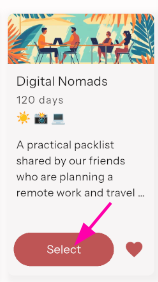
- Or tap the card itself to open it, then pick Start packing with this packlist.
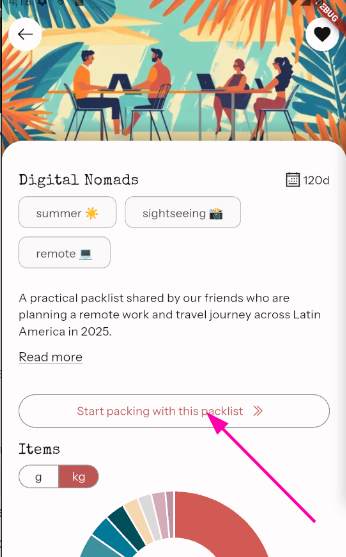
It will copy the selected packlist and drop you straight into it so you can begin checking items off.
How do I mark items as packed, reset a list, or see my packing progress?
-
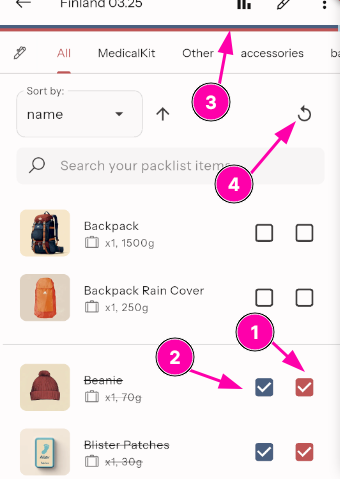
In Packlist Detail (tap on any of your packlists), tap the checkbox (1) to mark something packed; use the Prepared toggle (2) if you stage items before packing. (This is an optional field - to show it on your packlists, select appropriate option in
Profile → Settings) -
Progress bars (3) show how far along you are for both packed and prepared states, and confetti celebrates when you finish.
-
Hit Reset all (4) anytime to clear the checkboxes and start fresh.
How do I see packlist statistics?
- In Packlist Detail (tap on any of your packlists), open Statistics page by tapping on
 to see weight and category breakdowns.
 - Toggle units (big/small) inside stats to view weights in your preferred scale. Public packlist detail view offers the same toggle.
How do I add photos to items or packlists?
- Items: In Items List , open an item and tap Add photo to use your camera or gallery.
- Packlists: In Packlist Detail → Edit, choose or change the cover image to make the trip feel yours.
NOTE: custom photos are a premium feature. If you don't add any photo or are not a premium user, the app will try to match one of the default images based on the name and category/tags.
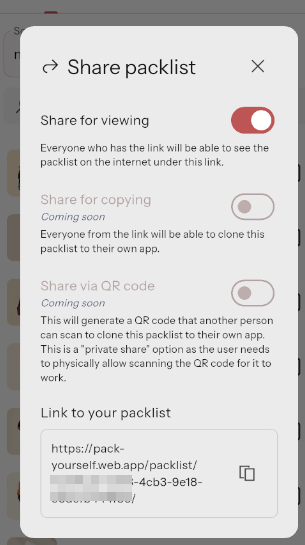
How do I share a packlist with someone else and what can they see?
-
In a given packlist Packlist Detail screen, tap on
menu and pick Share options. When you turn on Share for viewing, you will get a link to the web version of your packlist. Viewers can only see the list, they change it. -
The web version allows viewers can print a clean checklist.
-
You stay in control: turn sharing off anytime to revoke access.
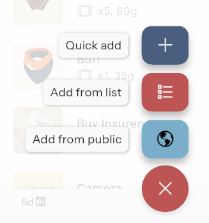
What’s the difference between Quick Add, Add from my items, and Add from public?
-
Quick Add (inside Packlist Detail - tap on any packlist): type a name (and optional weight/category) to drop a new item straight into the packlist—fastest way to jot things down.
-
Add from my items: pick from your saved library so you don’t retype your usual gear; keeps your categories/weights intact.
-
Add from public: browse our pre-made items and copy them directly. Ability to use this "shortcut" button is a premium feature. However, you can use public items in your library as a free user too. To do it:
- Navigate to the Browse screen
- Select Items tab

- Tap on any item to expand, and click on the plus icon to add it to your collection
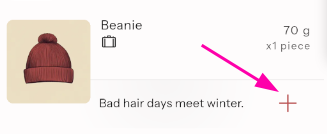
- You will find the item in your Items tab, and from now on, you will be able to add it to your packlist via the Add from my items option.
- Navigate to the Browse screen
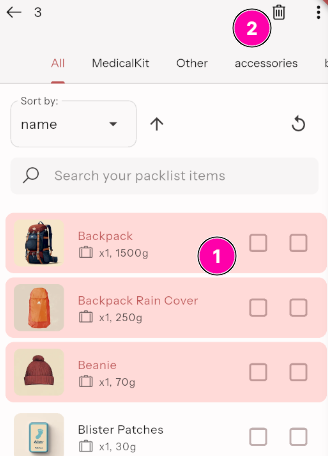
How do I delete many things at once?
Long-press any item to enter select mode, choose items to delete, then delete them in one go using a trash icon from the top app bar.
I have a couple items on a packlist that I don't yet have in my items library. Can I add them there?
Yes. From the Packlist Detail screen (tap on any of your packlists):
- Long-press any item to enter select mode
- choose items to add to your library of items
- Open menu in the app bar and select Copy selected packlist items to your personal items.
The selected items will be then available in your Items screen .
How do weight units work? Can I switch between metric and imperial?
- Your account stores a preferred unit (kg/g or lb/oz). Change it in Profile / Login → Settings → Weight unit.
- We recommend picking the unit at the beginning and sticking with it, as the weights in your custom made items will not be converted automatically if you decide to change the system later on. For example, if you add a 2lbs backpack to the app, after switching the units it would show as 2kg. This is a known limitation - if switching between weight systems is important for you, please let us know via our website and we will prioritize it in the development of the app.
- When you copy public items or packlists, weights are automatically matching your selected weight system. All stats and totals display in your chosen unit.
What are favorites and how do I pin a public packlist?
- In Browse Packlists , tap the pin/heart to favorite. Favorites rise to the top for your convenience.
- You can also favorite directly from a public packlist’s detail page.
How does offline mode work and what are the limitations?
- First login or registration needs a connection. After you’re in, your data is cached so you can view and tick items offline.
- An offline banner appears when the network drops. Syncing changes, sharing links, purchases, and first-time auth wait until you’re back online.
What’s included in premium vs free? How do I upgrade or restore a purchase?
- Premium lifts the free limits (more items, more packlists) and lets you add custom images and copy public items/packlists directly without restrictions. We might develop more premium featues in the future.
- Upgrade in Profile → Your current tier button and follow the store flow for your platform.
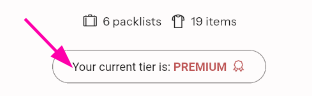
- On a new device, if your account is not detected as premium, tap on the Your current tier button and then on the Restore purchases on the bottom of the pop-up window to re-activate your premium access.
| Feature | Free | Premium |
|---|---|---|
| Max items | 30 | 1000 |
| Max packlists | 3 | 100 |
| Add public items directly to your packlist library | ❌ | ✅ |
| Custom images | ❌ | ✅ |
How do I delete my account?
- Follow the step-by-step guide on our data removal page: Delete my data.
How do I report a bug or request a new feature?
- In Profile → Report a bug, share what went wrong so we can follow up.
- For feature ideas or voting, follow the links to the website’s Features List / Request / Vote page in Profile → Features roadmap and let us know what would help you most.